Full-screen grid
A 7×5 grid over your blurred desktop, just like the system Launchpad. 5×7 in portrait mode.
 Version 1.0.0 · macOS 26 Tahoe
Apple removed Launchpad in macOS 26 Tahoe. RestorePad brings it back: a full-screen app grid, folders, search and edit mode — just like before. Free.
RestorePad runs on Mac. Open this page on your Mac to download it.
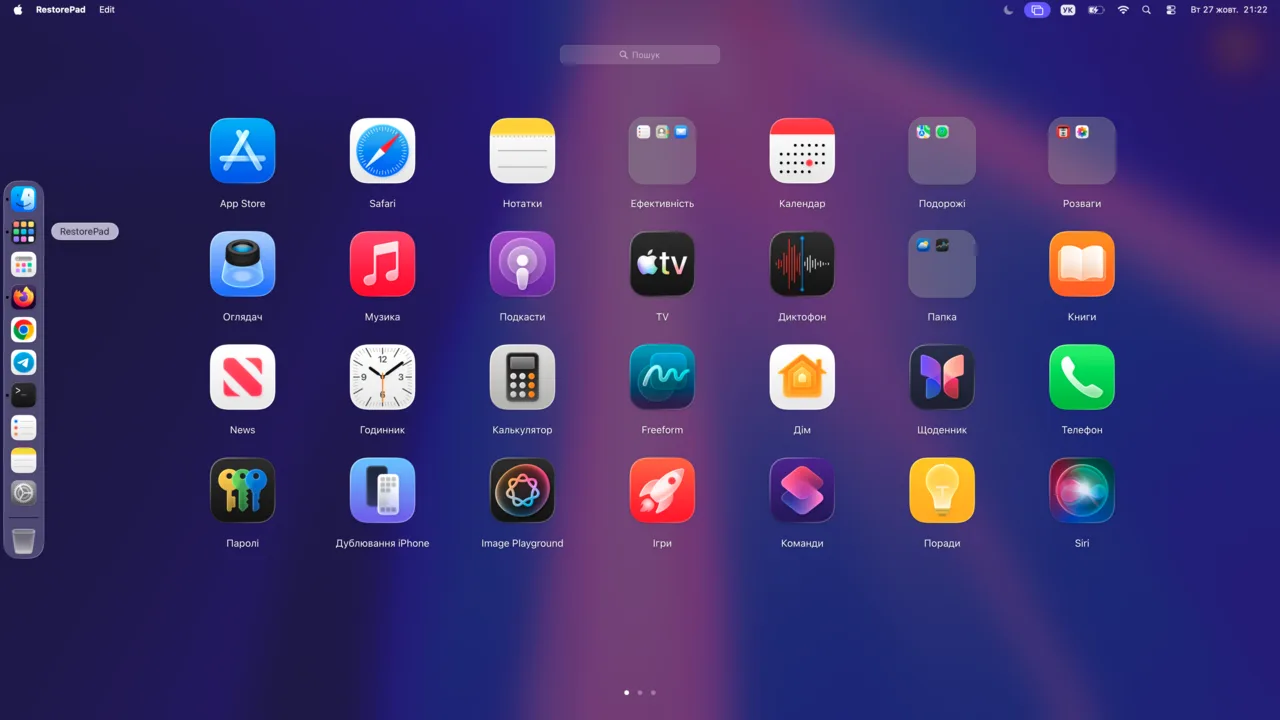
In macOS 26 Tahoe, Apple replaced Launchpad with an app list in Spotlight. The familiar full-screen grid and your folders disappeared.
A full-screen app grid, folders and fast search — the way you're used to, only better.
A 7×5 grid over your blurred desktop, just like the system Launchpad. 5×7 in portrait mode.
Swipe on the trackpad, scroll the mouse wheel, click the dots or press ⌘← / ⌘→.
Drag one icon onto another and the folder is ready. It's named after the App Store category — rename it any time.
Long-press or hold ⌥: icons jiggle, and you can rearrange them, move them between pages and pull them out of folders.
The ✕ on a third-party app moves it to the Trash after you confirm. Apple's system apps are protected.
Just start typing. Finds apps by both their localized and English names.
Arrow keys to navigate, Enter to launch, Esc to go back. Open RestorePad with ⌃⌥L.
New apps in /Applications show up on their own, and your layout is saved between launches.
RestorePad isn't signed with an Apple Developer certificate yet, so the first launch needs one extra step.
Pick the build for your Mac. Not sure which? menu → About This Mac: “Apple M…” means Apple Silicon, “Intel” means Intel.
Open the DMG and drag RestorePad into the Applications folder.
Run one command in Terminal — it removes the quarantine flag from the app:
xattr -dr com.apple.quarantine /Applications/RestorePad.app
Or try to open RestorePad, then go to System Settings → Privacy & Security → “Open Anyway”.
Done! Open RestorePad with ⌃⌥L or from the Dock.
SHA-256 checksumsYes, RestorePad is completely free — no ads, no subscriptions.
Open the menu → About This Mac. If “Chip” says Apple M1–M4, get Apple Silicon. If “Processor” says Intel, get the Intel build.
RestorePad isn't signed with a paid Apple Developer certificate yet, so macOS blocks the first launch. Remove the quarantine flag with xattr -dr com.apple.quarantine /Applications/RestorePad.app or allow it in Privacy & Security.
No. RestorePad runs locally on your Mac and works fully offline — it doesn't send anything anywhere.
Edit ~/Library/Application Support/RestorePad/settings.json, for example { "shortcut": "Control+Alt+L" }, and restart the app. Next to it is layout.json with your icon layout.
Turn on “Open at Login” in the app menu. You'll also find “Rescan Applications” and “Reset Layout” there.
RestorePad has just launched, and your feedback really helps. Write to me — I read and answer everything.
Hi! About RestorePad:
Register in a minute and write me directly — I'll reply in the chat on this site.
I design and build modern, responsive websites — from the first idea to launch.
Learn MoreOffline live speech translation with subtitles and voice-over. Now available for Linux.
Learn MoreMy tool for automatically extracting information from media files.
Learn MoreTo write me, create an account or log in — it takes a minute. You'll see my reply right here.
Create account I already have an account